Temporary Presets
|
➢
|
To temporarily adjust the Room preset or create a temporary preset during a meeting: |
|
1.
|
Do either of the following on the RX-PAD to access th Camera Settings page: |
|
●
|
Press the camera button below the screen. |
|
●
|
Tap the Down arrow on the top of the screen  , then tap Camera Settings. , then tap Camera Settings. |
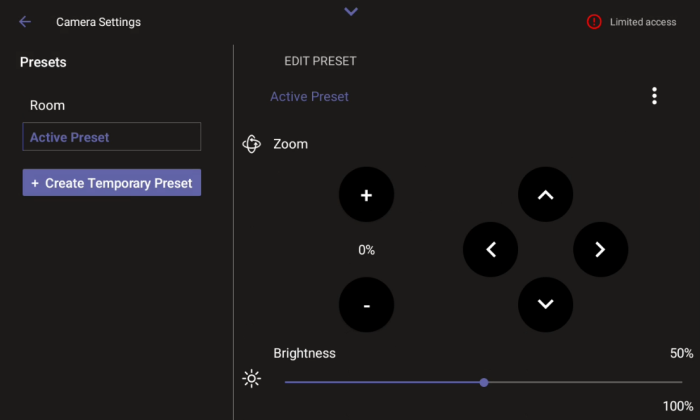
The default ‘Room’ preset enables you to capture all participants and actions in a meeting room.
|
2.
|
While in an ongoing meeting, tap the Create Temporary Preset button. |
If the user has Admin permissions, the button is labeled Create New Preset. In this case, the generated preset will be permanent.
|
3.
|
Configure the settings you want. |
|
●
|
If you configure a preset (for example) to zoom in and focus on a whiteboard in the meeting room, users in a video call-meeting can switch to it and later switch back to the default ‘Room’ preset or any other defined preset. |
|
●
|
Users can easily toggle between presets according to their requirements per call. |
|
4.
|
[Optionally] Edit a preset. |
|
5.
|
[Optionally] To return camera settings to their defaults, tap the vertical ellipsis and then from the pop-up menu select the Restore option. |
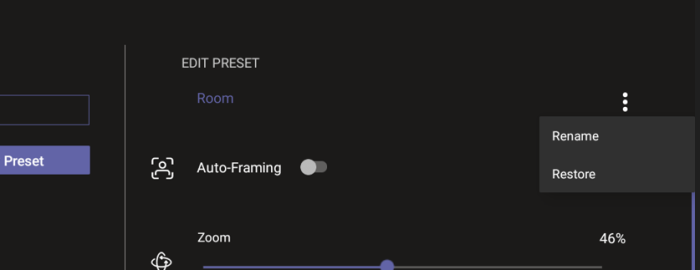
Camera settings can be changed during a meeting without turning off the video to remote parties.